
Steam Link
Valve Corporation
Screenshots

About this app
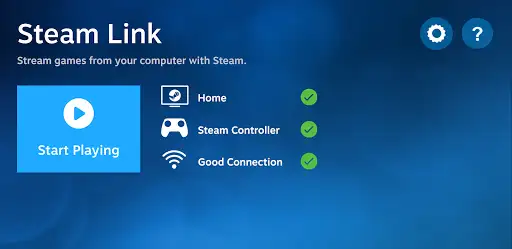
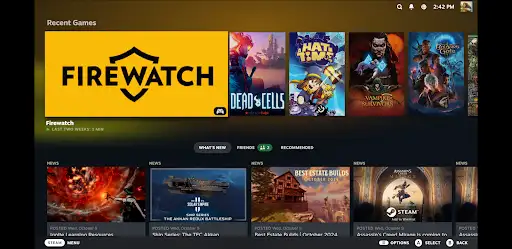
Steam Link turns your phone, tablet or Android TV into a window to the Steam on your PC. You run Steam on your computer. The app mirrors the game video and sends your controller input back. That's it. Simple in idea. Not always simple in practice. Pair a Bluetooth controller (or use a Steam Controller if you’re that kind of person). Make sure your PC is running Steam and Remote Play is enabled. For Android TV, plug both PC and TV into Ethernet when possible. For phones and tablets, aim for a 5GHz Wi‑Fi connection and keep the device close to the router. Yes, the app tells you this. But you’ll still tinker (and curse) a little. "Why is my game lagging?" I hear you. The common culprits are Wi‑Fi interference, old routers, or that roommate streaming Netflix. Fix those first. Some games — especially ones that demand super-precise mouse control — won't feel native. Don't expect miracles. But if you want couch co-op, racing sims from the couch, or to play that RPG you bought on sale five years ago without dragging your rig into the living room? It works. Often very well. There are extras. You can tweak stream quality, change resolution, and use on‑screen controls when no controller is handy. Some features depend on your PC’s GPU and your network gear. Some games auto-detect controller inputs; others need you to remap keys. So, yeah — a bit of fiddling. I paused for a sec. Think about who this is for: folks with a decent PC, a decent home network, and zero shame about playing Dark Souls on a tiny tablet at 2 a.m. (guilty). If you lack a wired backbone or insist on flawless 60fps at 4K over a cheap router — don't hold your breath. But if you want most of your Steam library accessible on other screens without reinstalling? Steam Link gets you there.
Editor's Review
I’ve been using Steam Link for months. I couch‑streamed half my backlog last winter. Some nights it felt like magic. Other nights, I slammed the controller into the couch (not proud). Latency is the boogeyman here. Most of the time it's barely noticeable. Then you get a spike and—boom—input delay that makes you miss a jump. The setup is straightforward. Pair a controller, enable Remote Play on your PC, and connect. I said straightforward. What I meant: four steps, plus three tweaks, plus a router reboot. But once it’s humming, the experience is chill. Graphics are compressed (obviously). Expect some artifacts if your network has issues. Also, mouse-first shooters? Not ideal on a phone unless you use a remote mouse workaround. "It stutters again," my roommate shouted once at 3 a.m. We traced it to his phone auto‑updating in the background. Fun times. My mild criticisms: the app leans on your home network more than I’d like; controller mapping can be fiddly in niche indie titles; and the UI could use clearer tips for troubleshooting. Still, it’s free, and it solves a real pain — playing PC games away from the desk. If you’ve got decent hardware and patience for a little setup, Steam Link is one of the best shortcuts to a living‑room PC gaming life. Not flawless. But honest. And when it works, it feels like stealing time from real life in the best way possible.
Pros
- Lets you play your existing Steam library on phone, tablet, or Android TV without reinstalling
- Supports Bluetooth controllers and basic on‑screen controls for quick pickup play
- Quality and bitrate settings let you balance visuals vs. latency for your network
- Works well for couch co‑op and single‑player couch sessions
Cons
- Requires a solid home network (5GHz Wi‑Fi or Ethernet) for best results
- Not ideal for fast twitch mouse‑heavy competitive shooters on touch devices
- Controller mapping quirks in some indie or older titles can require manual fixes
- Video compression artifacts appear on weaker connections
Additional Information
You May Also Like